Slash Commands
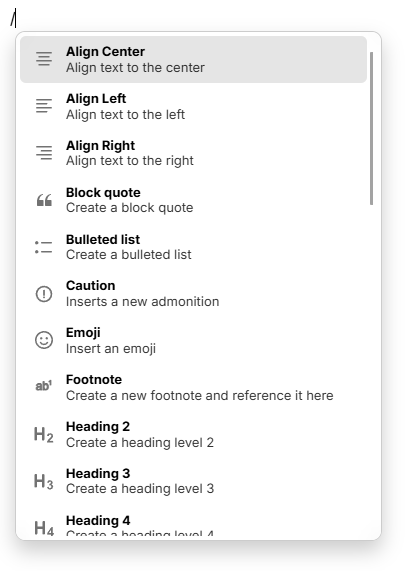
Slash commands is a feature of Text notes which allows easily accessing commonly used commands simply by using the keyboard, without having to remember dedicated Keyboard Shortcuts.
Interaction
- As the name suggests, to trigger the slash commands simply press the / key to trigger it. Note that this can be anywhere in a paragraph as long as it's not part of the word, if it doesn't show up simply press a space and press the / key again.
- Use ↑ and ↓ keys to navigate between options.
- By default, the full list of commands is displayed.
- To search, simply start typing: commands are found by their title or by other names they go by (for example
h2for Heading 2). - To trigger the highlighted action, press Enter or Tab.
- With the fixed Formatting toolbar, the block handle beside an empty paragraph turns into a button. Clicking it opens the commands that insert content or turn the paragraph into another block, such as a heading, a list, a table or a link, as a menu, with a box at its top that finds them by their title, their description or the other names they go by. The commands that only change the paragraph, such as alignment or indentation, are left out of that menu.
- The menu of the block handle, described in Formatting toolbar, starts with Insert above and Insert below, which list the same commands and add the one picked in a new paragraph above or below the block. Beside a list item, items that add an empty list item take their place.
Integration with other features
Apart from the common set of commands, some features are specially integrated with the slash commands:
- For admonitions, each admonition type (e.g. note, tip) will be individually displayed.
- Every Text Snippets will also appear individually, making it easy to insert them.
- For links, Link to a web page, Link to a note (internal link) and Link to a heading or anchor open the Add link dialog on the matching page. Link to a web page (with icon) and Link to a web page (as a card) also pick how the web link is displayed, as described in Link Previews.
- In-editor AI assistant: dedicated Ask AI item as well as all the predefined and custom quick actions.