 User Guide
To-do Lists
Extended task states#
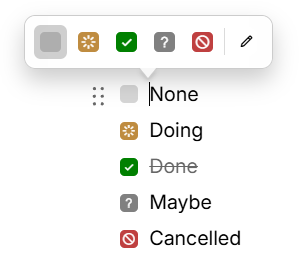
In Trilium, to-do items aren't limited to a simple "done" or "not done." Tasks can also be marked as in progress ("doing"), under consideration ("maybe"), or cancelled ("won't do"), thus giving a more accurate picture of where things actually stand.
Right-click the checkbox and select the desired state. Alternatively, press Ctrl+Shift+Enter to cycle through the task states. Tapping or left-clicking the checkbox will always toggle between "None" and "Done".
Task states are fully preserved when converting between Text and Markdown notes, in both directions.
Customizing the extended task states#
Task states are customizable: you can reorder them, create new ones with different colors and symbols, or delete the ones you don't need. See Customizing to-do task states for more details.
Keyboard shortcuts#
When at the beginning on an empty paragraph, type the following to insert a to-do list:
[ ]for an unchecked item[x]for a checked item
Extended task states are supported as well, using its corresponding Markdown symbol. These are the defaults but they can be changed if needed (see Customizing to-do task states):
[/]for “Doing”.[?]for “Maybe”.[-]for “Cancelled”.
To reorder the item under the cursor, press Alt+Up or Alt+Down. To reorder multiple items, select them first.
See also#
- To-do lists are meant for small task lists. For more complicated, day-to-day task tracking consider using a Kanban Board collection instead.