Format Painter
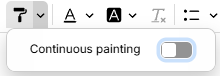
The Format Painter is a feature in text notes that allows users to copy the formatting of text (such as bold, italic, Strikethrough, etc.) and apply it to other parts of the document. It helps maintain consistent formatting and accelerates the creation of rich content.
Usage Instructions
Click the text that you want to copy the formatting from and use the Copy formatting toolbar button () to copy the style. Then select the target text with your mouse, or click a word, to apply the formatting.
- To copy the formatting: Place the cursor inside text with some formatting and click the Copy formatting toolbar button. The mouse cursor changes to indicate the painter is armed.
- To paint with the copied formatting: Select the target text with your mouse. The formatting is applied when you release the button, and the painter disarms — the cursor returns to normal. Clicking or tapping a word applies it to the whole word.
- To paint a selection made otherwise, such as with the keyboard or the selection handles of a touch screen: select the target text, then use the toolbar button again, which reads Apply formatting once the selection has moved. On a phone, the formatting row stays open while the painter is armed, so the button stays in reach.
- To cancel without painting: Click the toolbar button again before selecting other text, or press Escape.
Limitations
- Painting with block-level formatting (like headings or image styles) is not supported yet. This is because, in CKEditor, they are considered a part of the content rather than text formatting.
- A click outside a word, such as between two spaces or at the end of a line, only primes the caret, so text you type there takes the copied formatting.
- The painter is one-shot; each paint requires copying the formatting again.