 User Guide
Audio & Video
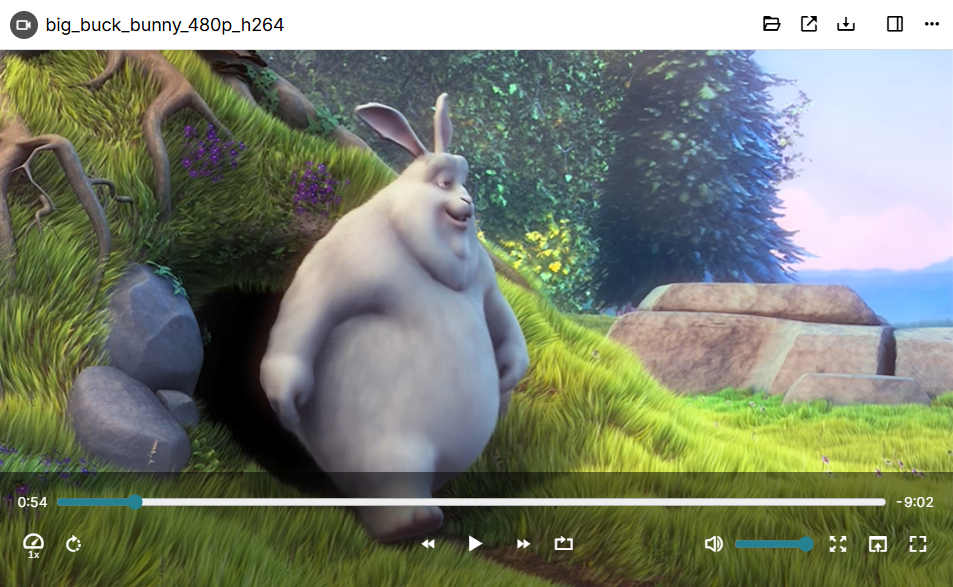
Starting with v0.103.0, Trilium has a custom media player for both video and audio files, which offers more features than the built-in player.
Versions prior to v0.103.0 also support media, but using the built-in player.
The file is streamed directly, so when accessing the note from a server it doesn't have to download the entire file to start playing it.
Note on large media files#
Although Trilium offers support for media files, it is generally not meant to be used with very large files. Uploading large media will cause the Database to balloon, as well as any Backup of it. In addition, there might be slowdowns when first uploading the files. Otherwise, a large database should not impact the general performance of Trilium significantly.
Supported formats#
Trilium uses the built-in media decoding mechanism of the browser (or Electron/Chromium when running on the desktop). Starting with v0.103.0, a message will be displayed instead when a media format is not supported.
Interactions#
To play/pause, simply click anywhere on the media. For video files, the controls at the bottom will hide automatically after playing, simply move the mouse to show them again.
The bottom bar has the following features:
- A track bar to seek across the media. Audio files up to 60 MB will display a waveform seekbar, to give a visual overview of the track's structure: silences, pauses, and louder segments.
- On the left of the track bar, the current time is indicated.
- On the right of the track bar, the remaining time is indicated.
- On the left side there are buttons to:
- Adjust the playback speed (e.g. 0.5x, 1x).
- Play mode (applies to all media from the parent note):
- Play once — play the media until it ends, then stop.
- Loop — replay the media automatically once it ends.
- Play next — when the current item ends, continue with the next one in the same parent note until the last item finishes.
- Rotate the video by 90 degrees (video only).
- In the center:
- Previous media — jumps to the previous media: the nearest media note above the current one in the tree (within the same parent note) in the case of media notes, or the previous media attachment.
- Go back by 10s
- Play/pause
- Go forward by 10s
- Next media — jumps to the next media: the nearest media note below the current one in the tree (within the same parent note) in the case of media notes, or the next media attachment.
- On the right side:
- Mute button
- Volume adjustment
- Full screen (video only)
- Zoom to fill, which will crop the video so that it fills the entire window (video only).
- Picture-in-picture, if the browser supports it (video only).
Including media in notes#

Text and Markdown notes can embed an interactive media player directly in the note content. To do so, include the audio or video file:
- Text notes: in the formatting toolbar, click “Insert” → “Include”.
- Markdown notes: type
/includepress Enter.
Then select the audio/video file note to be included.
Keyboard shortcuts#
The following keyboard shortcuts are supported by the media player:
| Space | Play/pause |
| Left arrow key | Go back by 10s |
| Right arrow key | Go forward by 10s |
| Ctrl + Left arrow key | Go back by 1 min |
| Ctrl + Right arrow key | Go right by 1 min |
| Page Up | Navigate to the previous media |
| Page Down | Navigate to the next media |
| F | Toggle full-screen |
| M | Mute/unmute |
| Home | Go to the beginning of the media |
| End | Go to the end of the media |
| Up | Increase volume by 5% |
| Down | Decrease volume by 5% |
| Alt+F1 (customizable) | Show this list of keyboard shortcuts on screen. |