 User Guide
In-editor AI assistant
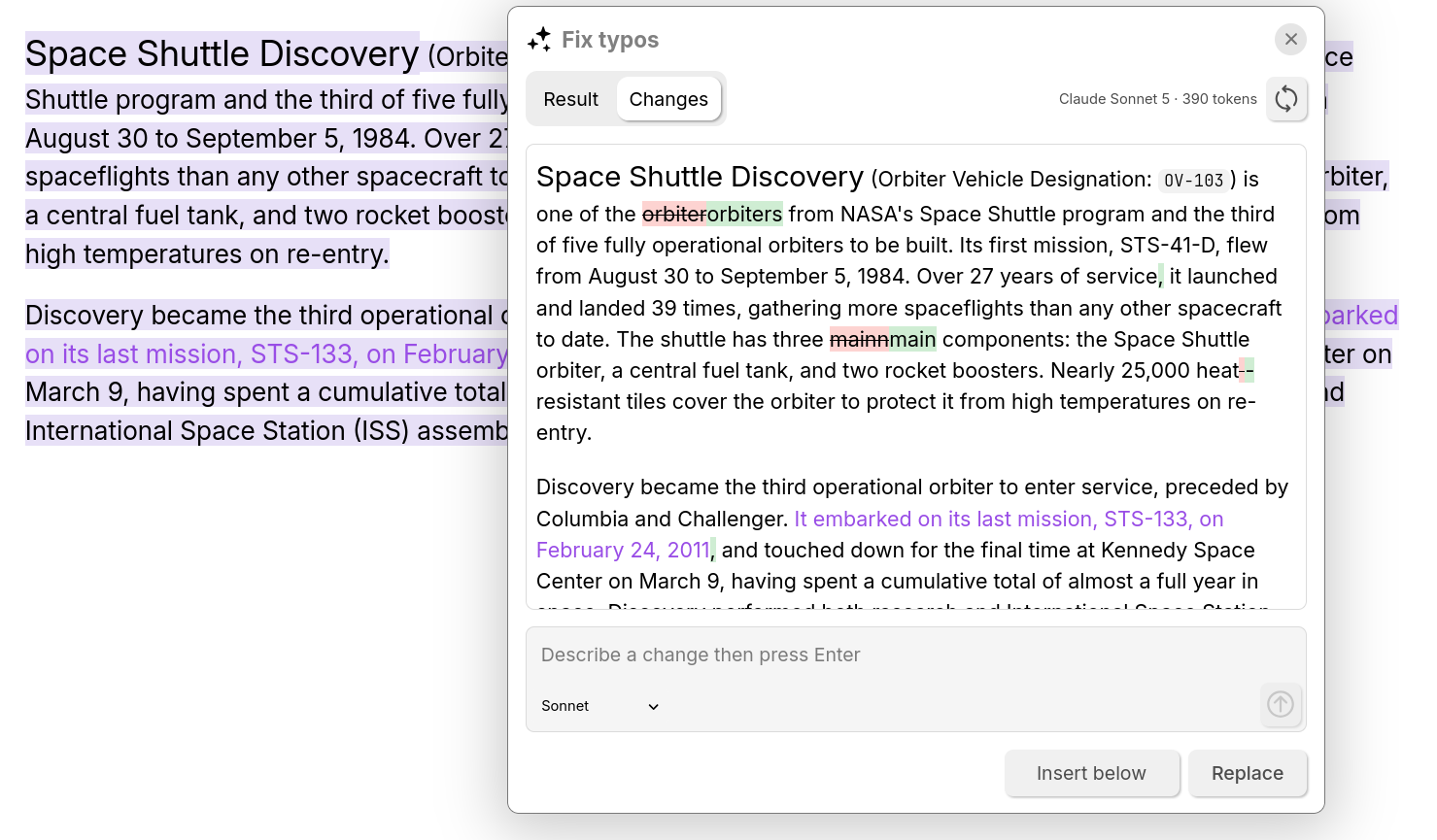
The AI assistant works on the text you are already writing: select a passage and have it rewritten, translated or turned into a table, or ask for new content at the cursor. Unlike the AI chat, it does not open a conversation window, the result is previewed in place and only enters the note when you accept it.
Requirements#
The assistant is only available once at least one provider is configured in Options → AI / LLM, with at least one model selected for it. Until then the toolbar entry is not shown at all.
Accessing the AI assistant#
To access the AI assistant:
- Look for the button in the Formatting toolbar. Press the button itself to enter the Ask AI mode or press the arrow key next to it to access the quick commands and the model selection.
- Look for AI assistant or any of the AI-prefixed quick commands in Slash Commands.
- Press Ctrl+Shift+K.
- Select a text and choose the AI assistant option in the Note contextual menu.
What the assistant works on#
| Situation | What is sent |
|---|---|
| Text is selected | The selection. |
| Nothing is selected, and you pick a quick action | The paragraph the cursor is in. |
| Nothing is selected, and you type your own prompt | Nothing, the response is new content written at the cursor. |
In all cases the assistant also sends the text before and after the target, so that the model can tell what it is writing into: asked to Continue writing or to summarize, a model that can only see the selected words is guessing at the document around them. This surrounding text is context only, it is never rewritten.
Quick actions#
The arrow beside the toolbar button opens a menu of ready-made instructions, grouped by what they do.
- The Reformat actions produce real Trilium content rather than plain text: Diagram inserts a Mermaid diagram, Callout an admonition, and Collapsible a collapsible block.
- The Translate group lists the content languages you have enabled, or a predefined list if no content languages are set. It can be filled from within the editor, the last entry of the submenu opens the language configuration directly.
Actions that need something to work on are greyed out when there is nothing to work on (for example an empty paragraph with no selection).
Asking for something specific#
Choosing Ask AI… opens a prompt where you can describe the change in your own words, for example: "make this less formal", "add a row for 2024", "write an intro paragraph for this section". Press Enter or the send button to run it.
Once a response arrives you can keep going in the same prompt, and the assistant treats it as a conversation rather than as a fresh request: after Translate this to German, asking for make it shorter shortens the German, not the original.
Reviewing the result#
The response streams in as it is generated, and can be interrupted at any point by pressing the Stop button; whatever arrived before that stays usable.
Nothing is written into the note until you say so. The review offers:
- Result which displays the response as it will be inserted.
- Changes which displays an inline diff against the original, with insertions and deletions marked. When the model rewrote the passage rather than editing it, the review opens on Result instead: a diff of two texts with little in common is harder to read than the answer itself.
- Try again, to re-run the same instruction.
- Replace, which substitutes the original passage
- Insert below, which keeps the original and adds the response after it.
Trilium also reports the model that produced it, the tokens consumed and, for providers that report it, the price.
If you ask for a correction and there is nothing to correct, the assistant will indicate it instead of showing a blank diff.
Choosing the model#
The bottom of the quick actions menu shows which model the assistant runs on, and lets you pick another from the models you selected in Options → AI / LLM, grouped by provider.
The model can also be changed while asking for something specific, or after the assistant has generated its response (i.e. if the response needs a better model).
This choice is separate from the model used by the chat, and is remembered across notes and devices. Left unset, the assistant follows the first configured provider.