Outline tab
The Outline tab appears in the Right Sidebar and displays the headings and highlights for the current note.
Table of contents
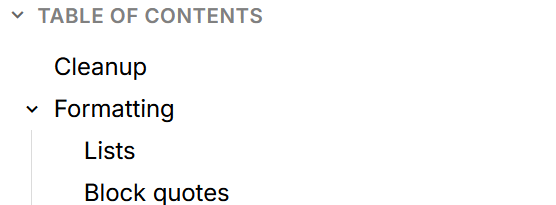
The table of contents displays the titles / headings in the current note and allows easy navigation.
The following note types are supported:
Interaction
- Clicking on a heading will scroll the document to the position of the heading.
- As the document is scrolled, the heading being read is highlighted and the list scrolls to keep it in view. If that heading is hidden inside a collapsed section, the collapsed heading is highlighted instead.
- Nested items can be collapsed by pressing the corresponding button.
Highlights
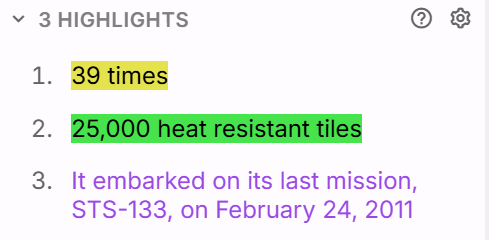
Similar to the table of contents, but instead of headings this feature will list highlighted text from a text note and allow easy navigation to them.
Unlike table of contents which supports multiple note types, the highlights are specific to the Text notes.
Highlighted text is defined as:
- Bold text.
- Italic text.
- Underlined text.
- Text with a foreground color set.
- Text with a background color/highlight set.
Interaction
- Clicking on a highlighted text will scroll the document to its position.
Configuration
- Globally, it's possible to toggle the display of each category of highlighted text (as defined above)
- Pressing the gear button in the top-right part of the section will reveal a menu to toggle between the highlight categories.
- Alternatively, they can be changed by going to Text Notes settings and looking for the Highlights List section.
PDF-specific outline
When PDFs are opened in Trilium, the Right Sidebar is augmented with PDF-specific navigation, with the following features:
- Table of contents/outline
- All the headings and “bookmarks” will be displayed hierarchically.
- The heading on the current page is also highlighted (note that it can be slightly offset depending on how many headings are on the same page).
- Clicking on a heading will jump to the corresponding position in the PDF.
- Pages
- A preview of all the pages with a small thumbnail.
- Clicking on a page will automatically navigate to that page.
- Right-clicking a page and selecting Copy reference copies a link that opens the PDF at that page.
- Annotations
- Highlight and comment annotations are listed here.
- Right-clicking an annotation and selecting Copy reference copies a link that opens the PDF at that annotation.
- Attachments
- If the PDF has its own attachments (not to be confused with Trilium's Attachments), they will be displayed in a list.
- Some information such as the name and size of the attachment are displayed.
- It's possible to download the attachment by clicking on the download button.
- Layers
- A less common feature, if the PDF has toggle-able layers, these layers will be displayed in a list here.
- It's possible to toggle the visibility for each individual layer.