Note contextual menu
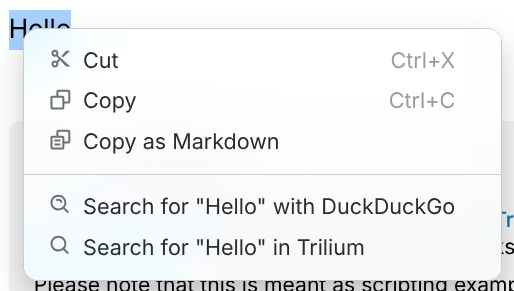
Right-clicking the content of some note types such as Text or Code reveals a contextual menu.
In a text note being edited, right-clicking a link opens the menu of the link instead, the same as its More actions menu (see External links and Internal (reference) links). A selection holding the link and more text keeps the contextual menu.
Features
- On the Desktop Installation, the Spell Check suggestions are shown when right clicking on a misspelled word.
- The selected text can be searched either with a search engine (configured in Options → Other) or inside Trilium.
- To remove the web search from the menu, choose None as the search engine.
- Basic clipboard functionality (cut, copy, paste).
- Copying the selected text as Markdown.
- Performing quick operations using the In-editor AI assistant.
Differences between desktop and web
The web version behaves slightly different due to limitations imposed by web browsers:
- When no text is selected or a word is right-clicked, the browser's default contextual menu is displayed.
- This is intentional since it preserves the Spell Check functionality.
- When a text is selected, a reduced menu is displayed instead which features only the functionality that is available within the browser version
- Paste is not available since the browser doesn't expose it, use Ctrl+V instead.
- The browser menu can be triggered anyway by pressing Shift + Right click.