 User Guide
Link Previews
Link previews turn a pasted URL into a rich, metadata-aware widget that can be displayed in three visual modes:
Display modes#
A link preview can be displayed in one of three modes:
- Inline — a link showing the site's favicon and page title (quite similar to Internal (reference) links). Use this when you want the link to flow with the surrounding paragraph.
- Card — a block-level preview with thumbnail, title, description, and site name. Use this when the link is the focus of a paragraph.
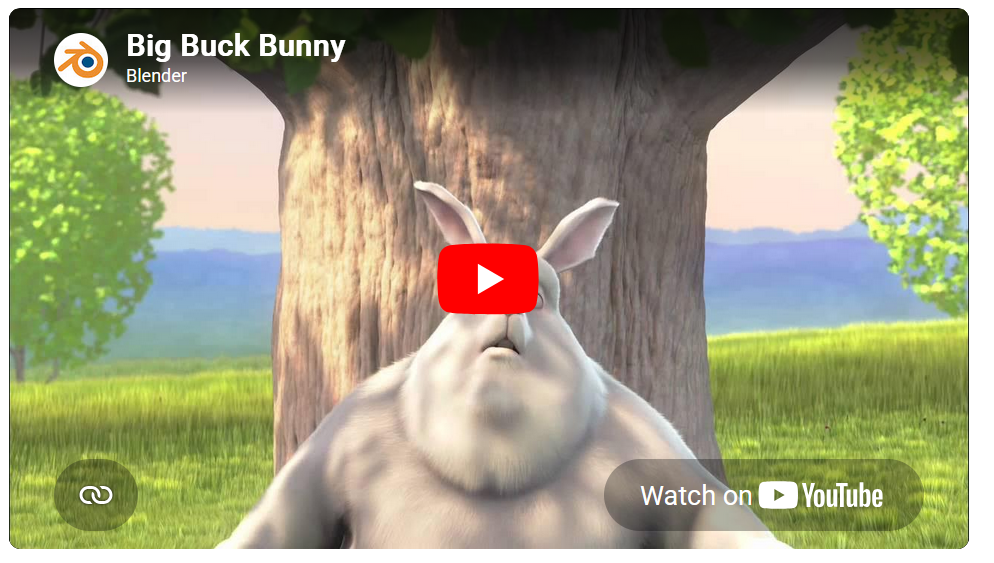
- Embed — a block-level interactive embed.
- Currently supported for YouTube videos, which render interactively (via an
iframe). - To prevent unwanted remote requests, the video is shown only after clicking on it first.
- Currently supported for YouTube videos, which render interactively (via an
 |  |  |
Inserting a link preview#
There are two ways to create one:
1. By pasting a URL#
A link preview is automatically created:
- By pasting the URL and pressing Space. This will create an inline link preview.
- When at the start of a new paragraph, pressing Enter will create a card or an embed for YouTube URLs.
To undo an automatic link preview, press Ctrl+Z immediately afterwards which keeps it as a plain link instead. Alternatively, once a link preview was created, click on the link and select Plain link from the link preview toolbar.
This automatic conversion can be disabled by going to Options → Text Notes and unchecking Autogenerate link previews from the Features section.
If the link is not accessible to the Trilium server (or the network request fails for any other reason), it will not be converted to a link preview.
2. By using the "Link preview" toolbar button#
Click Link preview in the formatting toolbar to open the Link preview popup. Paste the URL and choose the type of preview.
Altering an existing link preview#
Click on an inserted link preview to select it, and a small toolbar will appear with the following options:
- The normal link operations (opening in a new tab, copying the link, unlinking).
- A button to edit the title of the link preview. This is especially useful if the title is hidden behind a login screen.
- A way to switch between the link preview modes (Inline, Card or Embed) as well as to convert it to a normal link instead.
- The Embed option is only enabled when the URL points to a supported service (YouTube today).
Where the preview data comes from#
When you insert a link preview, Trilium fetches metadata once and stores it inside the note's HTML:
- YouTube URLs — title, channel name, and thumbnail are fetched via YouTube's public oEmbed endpoint.
- All other URLs — Trilium fetches the page and reads OpenGraph tags (
og:title,og:description,og:image,og:site_name), falling back to the page's<title>and<meta name="description">. The site's favicon is downloaded and inlined.
Because the data is stored in the note itself, link previews continue to render correctly when you reopen the note, share/publish it, or export to HTML — without any further network requests.
The metadata is captured at insertion time and is not automatically refreshed. If the linked page later changes its title or thumbnail, you'll need to re-insert the link to pick up the new values. To refresh a link, simply create it again.
When accessing a Server Installation, the data is fetched from the remote URL by the server and not the client.
Known limitations#
- The Embed display mode currently only supports YouTube. Other video and media platforms fall back to a Card preview.
- Pages that block automated fetches may produce a minimal preview (hostname only).
- Link previews require the Trilium server to reach the target URL, so they won't generate previews for pages on networks the server can't see.