Note Types
One of the core features of Trilium is that it supports multiple types of notes, depending on the need.
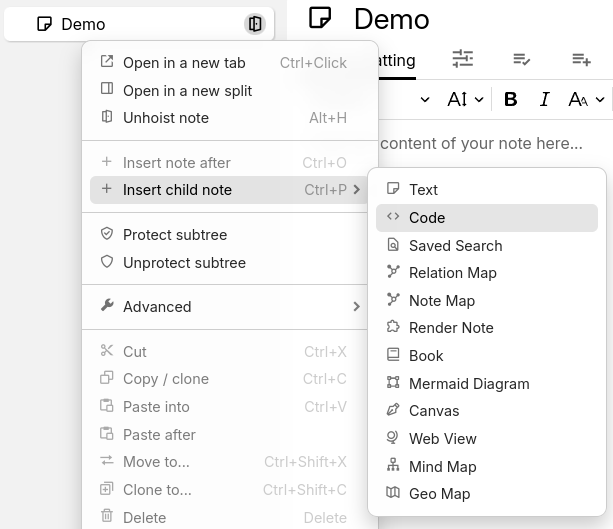
Creating a new note with a different type via the note tree
The default note type in Trilium (e.g. when creating a new note) is Text, since it's for general use.
To create a new note of a different type, head to the Note Tree and right click an existing note where to place the new one and select:
- Insert note after, to put the new note underneath the one selected.
- Insert child note, to insert the note as a child of the selected note.
The note types created less often, Saved Search, Render Note, Web View and Note Map, are in the More submenu.
Creating a new note of a different type via add link or new tab
- When adding a link in a Text note, type the desired title of the new note and press Enter. Afterwards the type of the note will be asked.
- Similarly, when creating a new tab, type the desired title and press Enter.
The note type is chosen from the same menu as in the note tree, with its submenus (code languages, snippets, collections and the note types created less often) and its search box: type to narrow the list, then press Enter to create the first match. Enter right away creates a Text note.
Changing the type of a note
It is possible to change the type of a note after it has been created via Note menu → Note type. This feature can also be used to edit the source of a note.
Supported note types
The following note types are supported by Trilium:
| Note Type | Description |
|---|---|
| Text | The default note type, which allows for rich text formatting, images, admonitions and right-to-left support. |
| Code | Uses a mono-space font and can be used to store larger chunks of code or plain text than a text note, and has better syntax highlighting. |
| Saved Search | Stores the information about a search (the search text, criteria, etc.) for later use. Can be used for quick filtering of a large amount of notes, for example. The search can easily be triggered. |
| Relation Map | Allows easy creation of notes and relations between them. Can be used for mainly relational data such as a family tree. |
| Note Map | Displays the relationships between the notes, whether via relations or their hierarchical structure. |
| Render Note | Used in Scripting, it displays the HTML content of another note. This allows displaying any kind of content, provided there is a script behind it to generate it. |
| Collections | Displays the children of the note either as a grid, a list, or for a more specialized case: a calendar. Generally useful for easy reading of short notes. |
| Mermaid Diagrams | Displays diagrams such as bar charts, flow charts, state diagrams, etc. Requires a bit of technical knowledge since the diagrams are written in a specialized format. |
| Canvas | Allows easy drawing of sketches, diagrams, handwritten content. Uses the same technology behind excalidraw.com. |
| Web View | Displays the content of an external web page, similar to a browser. |
| Mind Map | Easy for brainstorming ideas, by placing them in a hierarchical layout. |
| Geo Map | Displays the children of the note as a geographical map, one use-case would be to plan vacations. It even has basic support for tracks. Notes can also be created from it. |
| File | Represents an uploaded file such as PDFs, images, video or audio files. |