Global menu
The global menu configures the current window (zoom, keeping the window on top), switches the theme and offers access to some more advanced options.
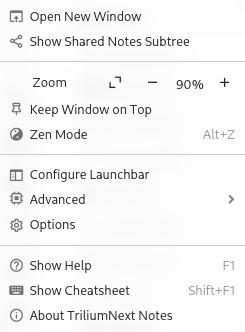
Accessing the global menu
See Vertical and horizontal layout since the position of the global menu is changed based on which layout has been selected.
Switching the theme
The Theme submenu changes the look of the application without opening the Options. A check mark at the end of a row shows the active choice. The submenu is not shown on mobile; change the theme from Options → Appearance there.
- Under Color scheme, choose System to follow the light or dark mode of the operating system, or Light or Dark to use one regardless.
- Under Theme, choose Modern (the default theme) or one of the custom themes, each shown with the icon of its note. Switching to Modern keeps the current color scheme.
A custom theme brings its own colors, so the color schemes are unavailable while one is active. The legacy theme is not listed; select it from Options → Appearance instead.
For more about the built-in and custom themes, see Themes.