Quick search
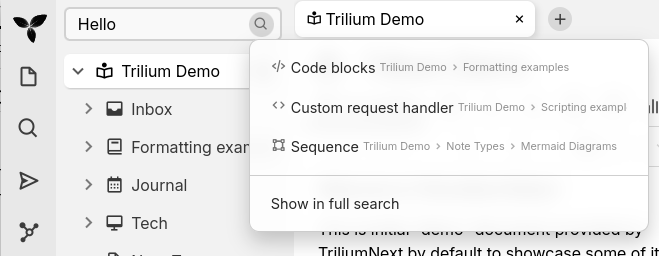
The Quick search function does a full-text search (that is, it searches through the content of notes and not just the title of a note) and displays the result in an easy-to-access manner.
The alternative to the quick search is the Search function, which opens in a dedicated tab and has support for advanced queries.
For even faster navigation, it's possible to use Jump to & command palette which will only search through the note titles instead of the content.
Layout
Based on the Vertical and horizontal layout, the quick search is placed:
- On the vertical layout, it is displayed right above the Note Tree.
- On the horizontal layout, it is displayed in the Launch Bar, where it can be positioned just like any other icon.
Search Features
Quick search includes the following features:
Content Previews
Search results now display a 200-character preview of the note content below the note title. This preview shows the context where your search terms appear, making it easier to identify the right note without opening it.
All results in one list
Quick search lists up to 200 matching notes in a single scrollable list, so the scrollbar shows how many results there are and how far through them you are.
Continuing in the full search
To refine a query with the options of the full Search, click Show in full search below the results, or press Ctrl+Enter in the search field. The full search opens in a new tab with the same query. The button stays below the list, however far the results are scrolled.
Visual Features
- Highlighting: Search terms appear in bold with accent colors
- Separation: Results are separated with dividers
- Theme Support: Highlighting colors adapt to light/dark themes
Search Behavior
Quick search uses progressive search:
- Shows exact matches first
- Includes fuzzy matches when exact results are fewer than 5
- Exact matches appear before fuzzy matches
Search Scope
Quick search covers only the subtree you are currently working in:
- Without hoisting, it covers the whole note tree.
- Under a hoisted note or inside a workspace, it covers only that subtree.
- Notes that exist only in the hidden tree, such as the built-in help pages and the launch bar configuration, are not returned. Hoist into the help to search it, or use Jump to…, which searches titles across the hidden tree.
To search the whole database while hoisted, use the full Search and leave Ancestor field empty.
Keyboard Navigation
- Press Enter in the search field to search, or to refresh the results already shown.
- Press Down in the search field to move to the first result, then Up and Down to move between results. Up on the first result returns to the search field.
- Press Page Down and Page Up to move through the results a page at a time.
- Press Enter on a result to open it.
- Press Ctrl+Enter to open the query in the full search.
- Press Escape to close the results.
To see these shortcuts on screen, click the ? button below the results, or press Alt+F1 while the search field is focused.
Using Quick Search
- Typo tolerance: Search finds results despite minor typos
- Content previews: 200-character snippets show match context
- Specific terms: Specific search terms return more focused results
- Match locations: Bold text indicates where matches occur
Quick Search - Exact Match Operator
Quick Search shares the same search engine as the full Search, so the exact match operator (=) behaves identically in both. Start your query with = (no space after it) to switch from the default "contains" behavior to exact whole-word or phrase matching.
What **=** actually does: it finds notes where the title or content contains your term as a whole word or phrase, ignoring surrounding punctuation. It does not require the whole note to equal your term, and it does not do substring or fuzzy matching.
| Query | Example note content | Matches? | Why |
|---|---|---|---|
sync | synchronize the database now | Yes | default search matches the substring |
=sync | see (sync) mode | Yes | = matches the whole word sync, punctuation ignored |
=sync | synchronize the database now | No | = never matches substrings |
="project plan" | the (project plan) is ready to share | Yes | quote a multi-word phrase to match it exactly |
The search is case- and diacritic-insensitive. For the complete explanation of the three matching modes, fuzzy operators and relevance ranking, see How search matches your text in the full Search documentation.
Limitations
- The
=operator must be at the very beginning of the search query. - A space immediately after
=is treated as a regular search. - Multiple
=operators (like==example) are treated as regular text search.
Related Features
- For attribute, property, boolean and ordering queries, use the full Search functionality.
- For fuzzy matching (finding results despite typos), use the
~=or~*operators in the full search. - For partial matches with wildcards, use operators like
*=*,=*, or*=in the full search.