List View
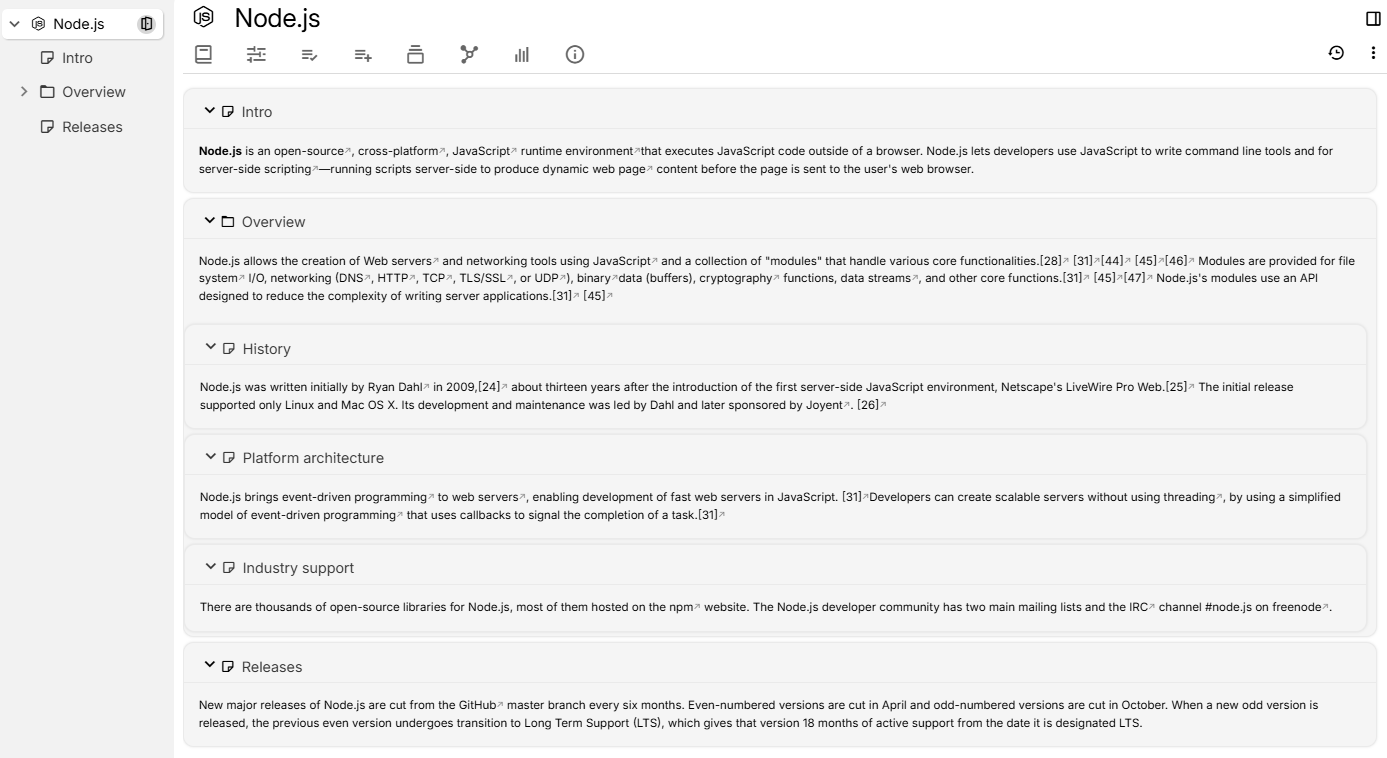
List view is similar to Grid View, but in the list view mode, each note is displayed in a single row with only the title and the icon of the note being visible by the default. By pressing the expand button it's possible to view the content of the note, as well as the children of the note (recursively).
In the example above, the "Node.js" note on the left panel contains several child notes. The right panel displays the content of these child notes as a single continuous document.
Creating a new table
Right click on an existing note in the Note Tree and select Insert child note → Collection → List View.
Interaction
- Each note can be expanded or collapsed by clicking on the arrow to the left of the title.
- In the Collection Properties toolbar, the buttons at the right end expand () and collapse () all notes easily.
Printing and exporting to PDF
Since v0.100.0, list collections can be printed or exported to PDF.
A printed list collection will print all the notes in the collection, in the right order and preserving the full hierarchy.
If exported to PDF within the desktop application, there is additional functionality:
- The table of contents of the PDF will reflect the structure of the notes.
- Reference and inline links to other notes within the same hierarchy will be functional (will jump to the corresponding page). If a link refers to a note that is not in the printed hierarchy, it will be unlinked.
Expanding and collapsing multiple notes at once
Apart from individually expanding or collapsing notes, it's also possible to expand or collapse them all at once. To do so, go to the Collection Properties toolbar and look for the buttons at its right end.
By default, the button expands only the direct children (first level) of the collection. Starting with v0.100.0, it's possible to expand multiple levels of notes using the button next to it.
Manually expanded notes will reset if the application/tab is closed and then the collection is visited again. However notes automatically expanded/collapsed via the buttons in Collection Properties will persist.