 User Guide
Tray icon & automatic startup
Tray icon#
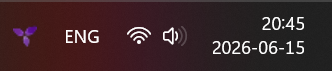
The desktop application has native integration with the system tray on all operating systems.
The tray icon is enabled by default, but it can be toggled from Options → Desktop.
The tray icon has the following functionality:
- When clicked, the last window is hidden (minimized to the tray icon). Clicking it again will reveal that window.
- Right clicking reveals the following options:
- Each window can be individually shown or hidden, identified by their active note.
- New windows can be opened.
- A new note can be created directly, which will be created in the Note Inbox (or Day Notes if an inbox is not available).
- Today's day note can be opened.
- Bookmarks and recent notes are displayed in a sub-menu and clicking them navigates to that note.
- Quitting the application.
Closing to system tray#
This is an option which is not enabled by default and it allows a specific behavior: instead of exiting the application when the last window has been closed, the last window is instead hidden with the tray icon remaining available.
This option requires the tray icon to be enabled, otherwise it has no effect.
Automatic startup#
Two options control the automatic startup functionality in Options → Startup:
When Launch on startup is enabled, the application will automatically start up when logging into the current user.
- Note that on Linux support depends on the desktop environment. Feel free to report any issues.
If Start minimized to tray is also enabled, the application will start up in the background and can be revealed from the tray icon.
- This only applies if Launch on startup is enabled, manual starts are not impacted by this option.