 User Guide
Format Painter
The Format Painter is a feature in text notes that allows users to copy the formatting of text (such as bold, italic, Strikethrough, etc.) and apply it to other parts of the document. It helps maintain consistent formatting and accelerates the creation of rich content.
Usage Instructions#
Click the text that you want to copy the formatting from and use the paint formatting toolbar button ( ) to copy the style. Then select the target text with your mouse to apply the formatting.
- To copy the formatting: Place the cursor inside a text with some formatting and click the paint formatting toolbar button. Notice that the mouse cursor changes to the
 .
. - To paint with the copied formatting: Click any word in the document and the new formatting will be applied. Alternatively, instead of clicking a single word, you can select a text fragment (like an entire paragraph). Notice that the cursor will go back to the default one after the formatting is applied.
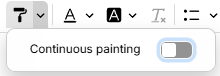
- To keep painting using the same formatting: Open the toolbar dropdown and enable the continuous painting mode. Once copied, the same formatting can be applied multiple times in different places until the paint formatting button is clicked (the cursor will then revert to the regular one).
Limitations#
- Painting with block-level formatting (like headings or image styles) is not supported yet. This is because, in CKEditor, they are considered a part of the content rather than text formatting.
- When applying formatting to words, spaces or other Western punctuation are used as word boundaries, which prevents proper handling of languages that do not use space-based word segmentation.