 User Guide
Markdown
Trilium has always supported Markdown through its import feature, however the file was either transformed to a Text note (converted to Trilium's internal HTML format) or saved as a Code note with only syntax highlight.
This note type is a split view, meaning that both the source code and a preview of the document are displayed side-by-side. See Note types with split view for more information.
Rationale#
The goal of this note type is to fill a gap: rendering Markdown but not altering its structure or its whitespace which would inevitably change otherwise through import/export.
Even if Markdown is now specially treated by having a preview mechanism, Trilium remains at its core a WYSWYG editor so Markdown will not replace text notes.
Features#
Source view pane#
- Syntax highlighting for the Markdown syntax.
- Nested syntax highlighting for code inside code blocks.
- When editing larger documents, the preview scrolls along with the source editor.
Preview pane#
The following features are supported by Trilium's Markdown format and will show up in the preview pane:
All standard and GitHub-flavored syntax (basic formatting, tables, blockquotes).
Basic HTML is also supported (e.g. collapsible blocks using
<details>and<summary>).Code blocks with syntax highlight.
Math Equations (both inline and block)
Mermaid Diagrams using
```mermaidInclude Note (no built-in Markdown syntax, but HTML syntax works just fine):
<section class="include-note" data-note-id="vJDjQm0VK8Na" data-box-size="expandable"> </section>- These can also be quickly created via the
/includecommand or via a dedicated keyboard shortcut (not assigned by default).
- These can also be quickly created via the
Internal (reference) links via its HTML syntax, or through a Wikilinks-like format (only Note ID):
[[Hg8TS5ZOxti6]]To-do lists with extended task states:
- [ ] None
- [/] Doing
- [X] Done
- [?] Maybe
- [-] Cancelled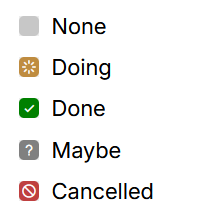
Task states are customizable: you can reorder them, create new ones with different colors and symbols, or delete the ones you don't need. See Customizing to-do task states for more details.
Note that to-do items with task states other than "None" and "Done" are Trilium-specific and may not work well with other Markdown software.
Footnotes are also supported via the corresponding Markdown syntax:
This is [^1], while this is [^2]. [^1]: the first footnote [^2]: the second footnote- These can also be quickly created using the
/footnotecommand.
- These can also be quickly created using the
Page breaks for Printing & Exporting as PDF:
<div class="page-break"></div>Highlights (background color) are supported both via the
==Markdown syntax, as well as the canonical HTML representation in Trilium:==highlighted== <span style="background-color:hsl(0,0%,100%);">Highlighted</span>
Links#
Multiple types of links are supported:
Web URLs can be written with the standard Markdown syntax:
[Wikipedia](https://www.wikipedia.org)Reference link to other notes with dynamic title, either by manually entering the note ID or via the Add link dialog:
[[B9oMG6rFvvfq]]Reference link to other notes with a custom text:
[This is a link](#root/LhtnZxtVsUMp)
To create a link, either:
- Type it manually using the syntax described above.
- Use the Add link dialog by pressing Ctrl+L or typing the
/linkcommand.
Link Previews are also rendered, but there is no mechanism to insert them automatically as of now, they have to be copied from a Text note instead.
Keyboard shortcuts#
The Markdown notes share some of the keyboard shortcuts from Text notes:
- Cut to note (Ctrl+X) which cuts the selection into a new child note.
- Add link (Ctrl+L) which shows the dialog to create external or reference links.
- Insert date/time (Alt+T) which respects the same formatting as text notes.
- Include note (not assigned by default), which triggers the same dialog to insert notes as the one for text notes.
In addition, the following formatting keyboard shortcuts are available:
- Ctrl+B to toggle bold.
- Ctrl+I to toggle italic.
- Ctrl+M to wrap the current selection in an inline math (
$). - Ctrl+Shift+X to toggle
strikethrough.
Images & attachments#
Images can be inserted into the document in four different methods:
- Drag & drop directly into the editor area.
- Pasting an image from clipboard.
- Pasting a reference to another attachment (e.g. Copy reference to clipboard button).
- Use the
/imageslash command.
An image reference to an attachment looks like this:
Auto-completion#
Slash commands#
Just like Text notes, Markdown notes support a selection of slash commands:
- Inserting the current date & time (
/date). - Including another note (
/include). - Uploading and inserting an image (
/image). - Inserting a note link (
/link). - Inserting a math equation block (
/math). - Inserting a footnote (
/footnote). - Inserting a Mermaid diagram (
/mermaid), with one variant per sample template (e.g./mermaid:flowchart). - Inserting a collapsible block (
/collapsible). - Inserting a page break for printing (
/page-break). - Inserting a table (
/table). - Creating admonitions (e.g.
/tip,/note,/important,/caution,/warning). - Inserting task items (
/todo:<state>, e.g./todo:done), one per configured task state. - Inserting code snippets (
/snippet:<name>) from your Markdown/plain-text snippet notes.
Note that slash commands only work outside of code blocks and inline code.
Code block language auto-completion#
Starting with v0.104.0, typing ``` to insert a code block will automatically open a list of suggested language types which have syntax highlighting.
The list of languages matches the one for Code notes set in Options, it's not the full list of languages supported by Trilium.
Other features#
- The Table of contents will be displayed in the Right Sidebar based on the Markdown-level headings.
- This feature is available only on the New Layout.
Shared notes#
When a Markdown note is shared publicly, it will be rendered with extended formatting just like Text notes.
Most of the features described previously should be supported. If you face any issues, feel free to report it alongside a sample Markdown file.
Creating Markdown notes#
There are two ways to create a Markdown note:
- Create a new note (e.g. in the Note Tree) and select the type Markdown, just like all the other note types.
- Create a note of type Code and select as the language either Markdown or GitHub-Flavored Markdown. This maintains compatibility with your existing notes prior to the introduction of this feature.
Import/export#
Import#
By default, when importing a single Markdown file it automatically gets converted to a Text note. To avoid that and have it imported as a Markdown note instead:
- Right click the Note Tree and select Import into note.
- Select the file normally.
- Uncheck Import HTML, Markdown and TXT as text notes if it's unclear from the metadata.
When importing a Trilium ZIP, it will preserve the Markdown type without converting to text notes thanks to the meta-information in it.
Exporting#
When exporting Markdown files, the extension is preserved and the content remains the same as in the source view (with some small exceptions such as handling of attachments).
When exporting Markdown files as ZIP, choosing HTML or Markdown as the export format makes no difference as that only affects Text notes.
If the Markdown note contains attachments, a ZIP export will rewrite the links to attachments so that they are replaced with a relative path to the attachment. On import, the links are re-written back.
Conversion between text notes and Markdown notes#
Text notes can be converted into Markdown notes and vice versa. See Converting between note types.
Sync-scrolling & block highlight#
When scrolling through the editing pane, the preview pane will attempt to synchronize its position to make it easier to see the preview.
In addition, the block in the preview matching the position of the cursor in the source view will appear slightly highlighted.
The sync is currently one-way only, scrolling the preview will not synchronize the position of the editor.
This feature cannot be disabled as of now; if the scrolling feels distracting, consider temporarily switching to the editor mode and then switching to preview mode when ready.